How much does Google crawl your website’s CSS, JS, or font files? And are those files being crawled successfully? You can find out using Google Search Console’s Crawl Stats report:
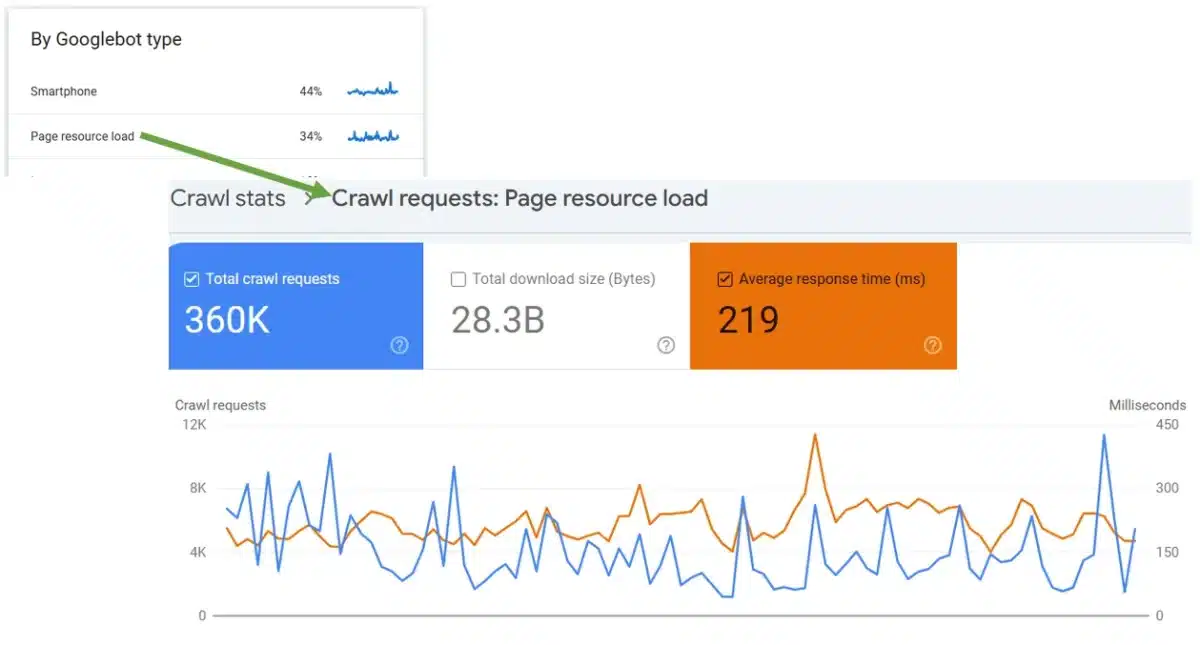
In Google Search Console, click “Settings” in the sidebar. Under Crawling, click “Open Report”. Scroll down to the “By Googlebot Type” section. This section tells you what type of bot Google uses to crawl your website’s files.
To know how Google is crawling your website’s CSS, JS, or font files, look for “Page resource load”. This is the bot Google is using to request all the files linked to from a page. Along with CSS, JS, and font files, this can also be the bot used to crawl images and videos when videos or images are used as part of the website’s content. (Images and videos can also be crawled as Image or Video bot types.)
This table shows the overall percentage of bot crawls. There isn’t a “right” amount of resource crawls. It depends on how your website is built and how many CSS, JS, font and other resources are used on your website. I’ve seen this percentage range from less than 1% of crawls all the way up to 79%.
The percentage itself isn’t what matters most. What matters is:
- Is Google crawling the right resource files?
- Is Google crawling those files successfully?
To answer these questions, click Page resource load to open the detail report. Here are a few things to review:
1) Trend for resource files
At the top, the graph will show you the overall trends for how often Google requests your website’s resource files. This trend line should be fairly steady over time, with some ups and downs. If you see long stretches where Google is not crawling resource files, that may indicate a problem where Google is unable to fully load and render a page.
2) Resource file load time
On the graph, click “Average response time” and that will show you how long it takes, on average, for your server to respond to Google’s request for the resource file. Do the resource files load relatively quickly (a few hundred milliseconds) or do files take a long time to load (more than 500+ milliseconds)? The longer the resource takes to load, the harder it will be for Google to crawl your website.
3) Review individual resource files
Below the graph, the table lists all resource files requested. Check if these are the correct resource files for Google to crawl. As well, check for files Google should not crawl. For example, you may find tracking scripts listed here. Google doesn’t need to crawl those files and by crawling tracking scripts, Google might be inflating your data. If that is the case, those resources could be blocked from crawling to save server resources.
4) Review resource status codes
Most resource files should have a Response of “OK (200)”. If you see Server error (5xx) or Not found (404) responses, check whether those files are still required to load the page. If they are, investigate whether anything is blocking Google from accessing them. I have also seen increases in 404s for dynamic CSS or JS files whose URLs change frequently, while Google is still trying to crawl older versions. In those cases, you may need to change how CSS and JS files are built to minimize URL changes.
One last note on resource files:
Just because Google crawls JS, CSS, or font files does not mean those files will be indexed or ranked. Google crawls resources so it can properly load, render, and understand your webpages. For that reason, do not block essential resource files in robots.txt.