What does Googlebot see on your website? Is it the same thing as regular visitors?
To find out, you can change your user agent in Chrome DevTools. To access DevTools, open a webpage in Google Chrome. Then right click and choose Inspect.
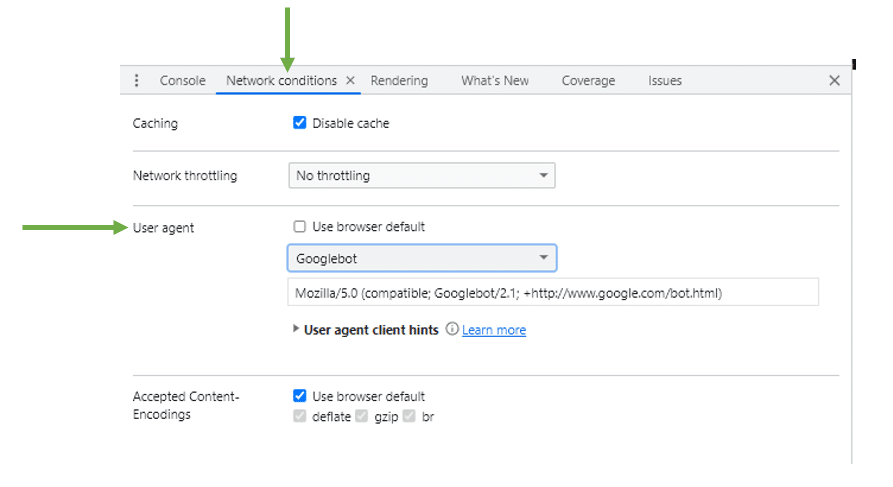
In DevTools, look in the lower panel for “Network Conditions”. You may need to use the three vertical dots menu (kebab menu) in the upper panel, go to “More Tools” and click “Network Conditions”.
Once you’ve located Network Conditions, you’ll see an option to change the user agent. By default, this is set to “User browser default”. Uncheck that box and then use the dropdown to choose a new user agent. Googlebot Desktop and Smartphone are both available in the dropdown.
After defining the user agent, reload the page. If you selected Googlebot, you’ll now see the page the way Googlebot sees the page. Compare this view to the view you see with a normal user agent. Does everything match up?
Hopefully, it does! Everything should match between Google’s view and yours. If it doesn’t, that is a sign of problems.
Sometimes, you will see new content appear on the page that visitors don’t see but Googlebot does. This is a form of cloaking. It can cause manual actions and/or a drop in rankings.
A mismatch could also be a sign of malware on the website. This indicates a security issue exists. Malware is always a bigger problem that needs to be addressed immediately.
My recommendation is to check for differences as part of an SEO audit and regular website checks, especially after major website updates. Problems can sneak up when you least expect them.